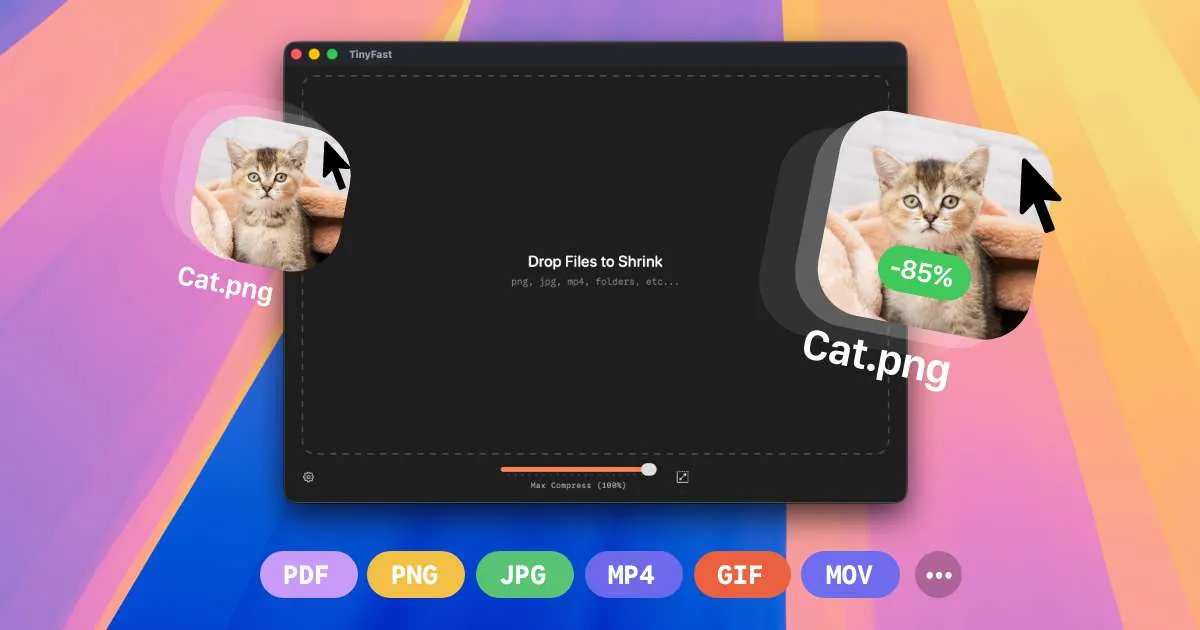
Overview
TinyFast is a macOS file compressor that handles images, videos, documents, and code files entirely on your device. It solves a problem that has become increasingly common in recent years: the need to shrink large files without sacrificing privacy or waiting for slow uploads to cloud-based services. The app was created by developer Melvin Zammit, who built it out of frustration with uploading sensitive assets to random websites. That origin story shows in the product's design, which prioritizes speed, simplicity, and local processing above all else.
The target audience is broad but specific. Freelance photographers need to deliver high-resolution images without clogging email servers. Web developers want to optimize assets for faster page loads. Legal professionals handle confidential documents that cannot be uploaded to third-party servers. Content creators need to compress video files before uploading to platforms like YouTube or social media. For all of these users, TinyFast offers a drag-and-drop workflow that produces compressed files in seconds, with no account creation, no cloud storage, and no waiting.
The competitive landscape for file compression tools is crowded. Online compressors like TinyPNG, Compressor.io, and CloudConvert are popular but require uploading files to remote servers. Desktop alternatives like ImageOptim and Squash exist for Mac, but they often focus on specific file types or lack the batch processing capabilities that TinyFast offers. TinyFast is a solid alternative to TinyPNG, CloudConvert, and ImageOptim, especially for users who prioritize privacy and want a single tool that handles multiple file formats. The app's differentiator is its privacy-first approach combined with broad format support and a genuinely simple interface. This review will examine whether TinyFast delivers on its promises and who stands to benefit most from adding it to their Mac toolkit.
Key Features
Drag-and-Drop Compression
The core workflow is exactly what the name suggests. Users drag a file or folder onto the TinyFast window, and the compression process begins immediately. There are no wizards, no configuration screens, and no multi-step processes to navigate. The website shows video demos of files being dropped and compressed in seconds, which accurately reflects the experience. This simplicity makes the app accessible to users of all technical levels, from a grandmother emailing family photos to a developer optimizing assets for a production build. The value here is time saved and frustration avoided, since most competing tools require at least some setup or navigation before compression begins.
Batch Processing
TinyFast supports compressing entire folders at once, which is a significant time-saver for anyone dealing with large collections of files. The website highlights "Bulk Folders" and "Bulk Image" options, indicating that users can drop multiple files or entire directories and receive optimized output in one operation. This is particularly useful for photographers who need to process hundreds of images after a shoot, or for developers who want to optimize all assets in a project folder before deployment. The batch processing capability transforms TinyFast from a casual utility into a professional-grade tool that can handle high-volume workflows without requiring users to compress files one by one.
Local and Private Processing
All compression happens on the user's Mac, with no uploads to cloud servers. The website states this clearly: "Your files never leave your machine. No uploads, no cloud servers. Total privacy by design." This is the feature that sets TinyFast apart from web-based compressors and addresses growing concerns about data security. For professionals handling confidential documents, proprietary code, or sensitive media, this local processing is not just a nice-to-have, it is a requirement. The privacy aspect also means there are no file size limits, which is a common restriction on free online compressors. Users can compress files as large as they need without worrying about upload caps or bandwidth constraints.
Wide Format Support
TinyFast supports a broad range of file types, including common image formats like PNG, JPG, TIFF, HEIC, WebP, GIF, BMP, and SVG. It also handles video formats such as MP4, MOV, and M4V, documents including PDF and DOCX, code files like JS, CSS, and JSON, and audio in MP3 format. This versatility makes it a one-stop solution for most compression needs, reducing the need for multiple specialized tools. A user who needs to compress a PDF contract, a video clip, and a folder of images can do all of that within a single app. The format support is comprehensive enough that most users will not need to look elsewhere for their compression needs.
Resolution Resizing
The app allows users to automatically resize image or video resolution during compression. This is a valuable feature for reducing file size further, especially for files that are larger than necessary. The website shows a demo video of this feature in action, indicating that users can set desired dimensions and the app will handle the rest. This is particularly useful for web developers who need to create multiple versions of an image for different screen sizes, or for content creators who want to produce optimized versions of videos for different platforms. The resizing feature adds a layer of control that goes beyond simple compression, giving users more flexibility in how they optimize their files.
Fast Compression Engines
TinyFast uses "optimized native engines built for speed," according to the website. This means compression is performed locally using macOS-native libraries, which are typically faster than web-based tools that require upload and download times. The app is designed to handle large files quickly, making it suitable for high-volume workflows. Users who have experienced the frustration of waiting for a large video to upload to an online compressor, only to wait again for the download, will appreciate the instant feedback that local processing provides. The speed is not just a convenience, it is a productivity multiplier for professionals who compress files regularly.
Simple Pricing Tiers
TinyFast offers a free tier with up to 5 compressions per day, a lifetime plan for €24.99, and a monthly subscription at €2.99 per month after a 3-day trial. This flexible pricing allows users to try the app for free and choose a plan that fits their usage frequency and budget. The free tier is generous enough for casual users, while the lifetime plan offers excellent value for professionals who use the app regularly. The pricing structure is straightforward and transparent, with no hidden fees or confusing tier levels.
How It Works
Getting started with TinyFast is refreshingly simple. Users download the app from the Mac App Store and install it like any other macOS application. There is no signup process, no account creation, and no email verification required. This aligns with the privacy-first philosophy and removes a common barrier to entry. Once installed, the app presents a clean, minimal interface with a drop zone that invites users to drag files or folders onto it.
The day-to-day workflow is equally straightforward. Users drag a file or folder onto the TinyFast window, and the compression process begins immediately. The app displays progress indicators, and the compressed file is saved to a location of the user's choosing, typically alongside the original or in a designated output folder. For users who want to resize resolution, they can set preferences before compression. The app supports batch processing, so users can drop multiple files or entire folders at once and receive optimized output in a single operation.
The learning curve is minimal, as the drag-and-drop interaction is intuitive and familiar to anyone who has used a Mac. The website includes video demos that show the entire process, from dragging a file to receiving the compressed output. There are no complex settings to configure, making it accessible to non-technical users. The app also integrates with macOS Quick Actions, as hinted by a guide on "Compress Video Quick Action," which allows users to compress files directly from the Finder context menu. This integration further streamlines the workflow, enabling users to compress files without even opening the TinyFast app.
For users who need to compress files regularly, the Quick Action integration is a significant productivity boost. Instead of opening TinyFast and dragging files, users can right-click on a file in Finder and select the compression option from the context menu. This seamless integration with the macOS ecosystem makes TinyFast feel like a native part of the operating system rather than a separate utility.
Use Cases
A freelance photographer delivering client work
A photographer who shoots weddings and corporate events needs to deliver high-resolution images to clients via email or online galleries. They can use TinyFast to compress batches of photos without compromising quality, ensuring fast uploads and downloads. The local processing keeps client work private, which is crucial for maintaining trust and protecting their reputation. The batch processing capability allows them to compress an entire folder of images from a single shoot in one operation, saving hours of manual work.
A web developer optimizing assets for performance
A developer working on a client project with many images and videos needs to optimize assets for web performance to reduce page load times. They can use TinyFast to compress images, videos, and even code files like JS and CSS. The batch processing and support for multiple formats make it a handy tool for front-end optimization. The privacy aspect ensures proprietary code never leaves the machine, which is essential when working with client projects that may contain sensitive business logic or unreleased features.
A marketing team managing multiple client accounts
A marketing team at a mid-size agency handles multiple client accounts and often needs to compress large video files for social media or client presentations. TinyFast's speed and batch capabilities allow them to process multiple files quickly, and the lifetime plan offers a cost-effective solution for ongoing use. The resolution resizing feature helps them create optimized versions for different platforms, such as square videos for Instagram and landscape versions for YouTube.
A legal professional handling sensitive documents
A lawyer who handles sensitive documents, such as contracts or evidence files, needs to compress PDFs and images without worrying about uploading confidential information to third-party servers. TinyFast's local processing ensures compliance with data protection regulations and client confidentiality. The ability to compress files without uploading them to the cloud is not just a convenience, it is a legal and ethical requirement in many jurisdictions.
A content creator producing videos for multiple platforms
A YouTuber or social media influencer produces videos that need to be compressed before uploading to save bandwidth and time. They can use TinyFast to reduce file sizes without significant quality loss, and the resolution resizing feature helps them create optimized versions for different platforms. The free tier is sufficient for occasional use, while the lifetime plan makes sense for creators who upload content regularly.
Design & User Experience
TinyFast presents a clean, modern interface that aligns with contemporary macOS design conventions. The website showcases a minimal window with a prominent drop zone, making it immediately clear what the app does and how to use it. The design language is consistent with Apple's Human Interface Guidelines, which means Mac users will feel at home from the first launch.
The navigation is intuitive, with no complex menus or hidden settings. The app's primary interaction, drag-and-drop, is universally understood and requires no explanation. The website includes video demos that show the entire process, which is helpful for users who want to see the app in action before downloading.
The learning curve is essentially nonexistent. Users can install the app and compress their first file within minutes, without consulting documentation or watching tutorials. This accessibility is a significant strength, as many compression tools require users to navigate complex settings or understand technical concepts like bitrate and compression ratios.
One potential area for improvement is the lack of advanced compression settings. Users who want fine-grained control over quality versus file size might find the simplicity limiting. However, this trade-off is intentional, as TinyFast prioritizes ease of use over customization. The app is designed for users who want results without fiddling with settings, and it delivers on that promise.
Pricing & Value
TinyFast offers three pricing tiers that cater to different usage patterns. The Free plan allows up to 5 compressions per day, which is generous for casual users who occasionally need to shrink a file. This tier is ideal for students, home users, or anyone who compresses files infrequently.
The Lifetime plan costs €24.99 as a one-time payment, providing unlimited local compressions and all features, including future updates. This is a compelling option for professionals who use the app regularly, as it eliminates recurring costs. The lifetime plan represents excellent value for money, especially when compared to subscription-based competitors that charge $5 to $10 per month.
The Monthly subscription is €2.99 per month after a 3-day free trial, offering unlimited compressions and all features. This is a low-cost entry point for users who want to test the full capabilities before committing to a lifetime purchase. The 3-day trial provides enough time to evaluate the app's performance and decide whether it meets their needs.
Compared to other Mac compression tools, TinyFast's pricing is competitive. Many similar apps charge a one-time fee of $20 to $50 or a subscription of $5 to $10 per month. The lifetime plan at €24.99 is particularly attractive for heavy users. The free tier, while limited, is more generous than some competitors that offer only a trial. Overall, TinyFast provides good value, especially for users who prioritize privacy and local processing.
Who Is TinyFast Best For?
TinyFast is best suited for three main user segments. First, privacy-conscious professionals who handle sensitive data, such as lawyers, accountants, and healthcare workers. These users need to compress files without uploading them to third-party servers, and TinyFast's local processing provides the security they require. The app's privacy-first design is not just a feature, it is a necessity for compliance with data protection regulations.
Second, creative professionals like photographers, videographers, and graphic designers who work with large media files. These users need to compress high-resolution images and videos for client delivery, web upload, or storage. TinyFast's batch processing and wide format support make it an efficient tool for high-volume workflows. The resolution resizing feature is particularly valuable for creating optimized versions for different platforms.
Third, web developers and front-end engineers who need to optimize assets for performance. These users can use TinyFast to compress images, videos, and code files to reduce page load times and improve user experience. The privacy aspect ensures proprietary code never leaves the machine, which is essential when working on client projects.
Users who might want to look elsewhere include those who need cross-platform support, since TinyFast is Mac-only. Windows and Linux users will need to find alternatives like Caesium or Squash. Additionally, users who require advanced compression settings, such as custom quality sliders or format-specific options, might find TinyFast's simplicity limiting. For these users, tools like HandBrake for video or ImageOptim for images offer more granular control.